<?xml version="1.0" encoding="utf-8"?><feed xmlns="http://www.w3.org/2005/Atom" xml:lang="en-EN"><generator uri="https://jekyllrb.com/" version="3.10.0">Jekyll</generator><link href="https://miswired.github.io/feed.xml" rel="self" type="application/atom+xml" /><link href="https://miswired.github.io/" rel="alternate" type="text/html" hreflang="en-EN" /><updated>2026-04-08T07:12:16-04:00</updated><id>https://miswired.github.io/feed.xml</id><title type="html">Miswired</title><subtitle>Miswired is a personal blog of musings and projects</subtitle><author><name>Miswired</name></author><entry><title type="html">The Glitchy is Born</title><link href="https://miswired.github.io/hardware%20exploitation/2024/07/29/Glitchy/" rel="alternate" type="text/html" title="The Glitchy is Born" /><published>2024-07-29T00:00:00-04:00</published><updated>2024-07-29T00:00:00-04:00</updated><id>https://miswired.github.io/hardware%20exploitation/2024/07/29/Glitchy</id><content type="html" xml:base="https://miswired.github.io/hardware%20exploitation/2024/07/29/Glitchy/"><![CDATA[<p>My first adventure into open source hardware and software… and hardware hacking.</p>

<!-- more -->

<p>So I did a thing. While I have lots of expeirence designing circuit boards, I have always been tasked with protecting hardware from explitation, not designing a tool to exploit hardware. I learned a lot and had a lot of fun along the way. I hope this project sparks peoples curiocity and gives them a jumping off point to build on. So all the hardware and software is open source and there will be lots of documentation help get people started.</p>

<p>See the offical landing page for project details: <a href="http://www.miswired.io/glitchy/">Glitchy</a></p>]]></content><author><name>Miswired</name></author><category term="Hardware Exploitation" /><summary type="html"><![CDATA[My first adventure into open source hardware and software… and hardware hacking.]]></summary><media:thumbnail xmlns:media="http://search.yahoo.com/mrss/" url="https://miswired.github.io/assets/default-social-image.png" /><media:content medium="image" url="https://miswired.github.io/assets/default-social-image.png" xmlns:media="http://search.yahoo.com/mrss/" /></entry><entry><title type="html">HackerBox 0057 DEFCON 28 Badge</title><link href="https://miswired.github.io/esp32/2020/08/16/HB0057DC28/" rel="alternate" type="text/html" title="HackerBox 0057 DEFCON 28 Badge" /><published>2020-08-16T00:00:00-04:00</published><updated>2020-08-16T00:00:00-04:00</updated><id>https://miswired.github.io/esp32/2020/08/16/HB0057DC28</id><content type="html" xml:base="https://miswired.github.io/esp32/2020/08/16/HB0057DC28/"><![CDATA[<p>DEFCON 28 Safemode was world first. I certainly missed being there in person, but luckily I was able to grab a few badges to bring a bit of DEFCON home.</p>

<!-- more -->

<p>HackerBox included their DC28 badge in their Hackerbox #0057 package. This guide contains some of my own notes on setting up an environment to work with the badge. It should be noted that most of this came from the HB instructable page.</p>

<p><a href="https://hackerboxes.com/products/hackerbox-0057-safe-mode">Hackerbox #0057</a><br />
<a href="https://www.instructables.com/id/HackerBox-0057-Safe-Mode/">Instrucable for Hackerbox #0057</a></p>

<h2 id="steps-summary">Steps Summary</h2>

<p>Be sure to install the latest version of Arduino if you haven’t already.<br />
<a href="http://www.arduino.cc/en/main/software">Arduino Site</a></p>

<p>Below I have summarized the steps I took from this link:
<a href="https://github.com/espressif/arduino-esp32/blob/master/docs/arduino-ide/boards_manager.md">Expressif setup guide</a></p>

<p><strong>Using the board manager in Arduino, add the esp32 board library:</strong></p>
<ul>
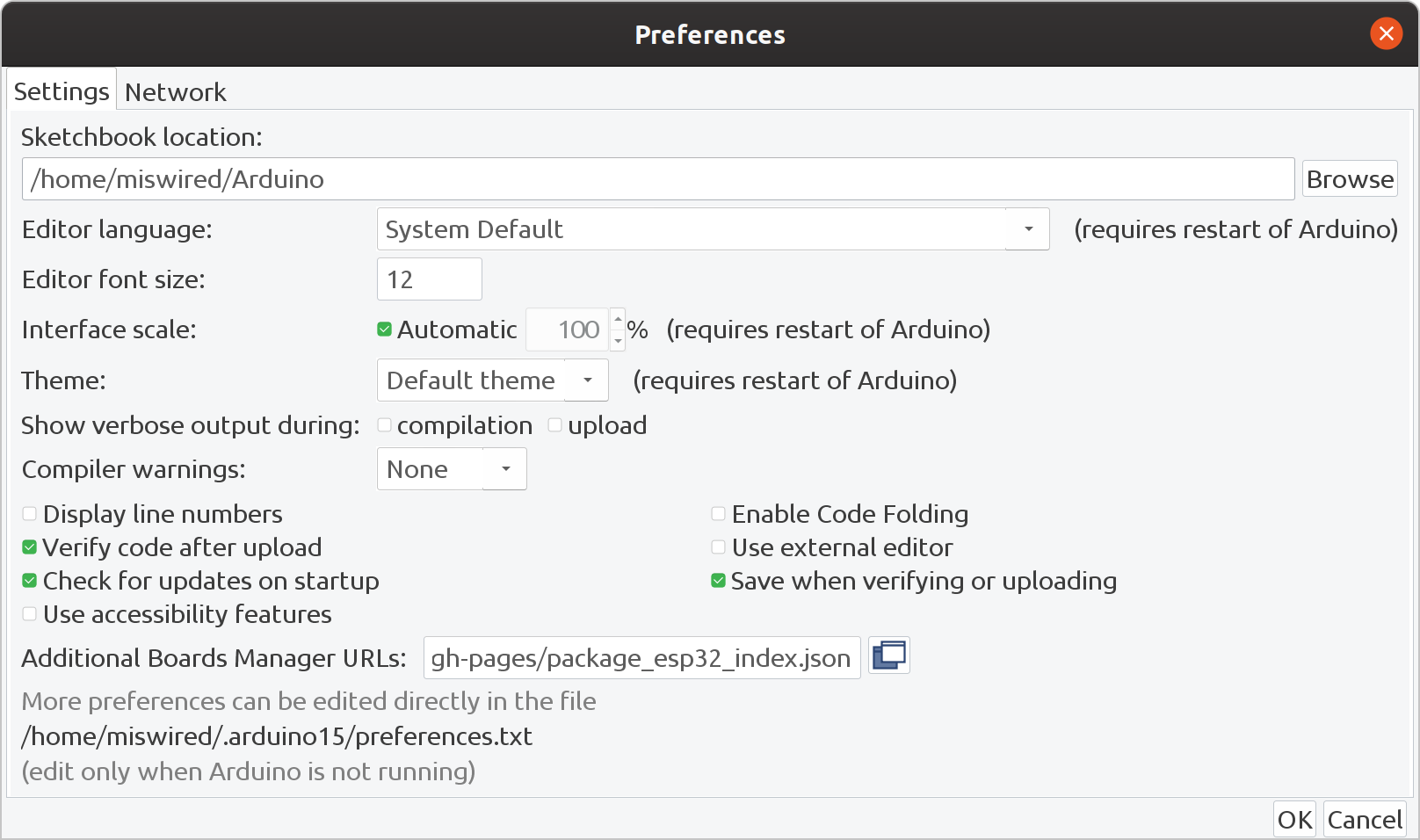
  <li>File&gt;Prefferences&gt;Aditional Boards manager URL</li>
  <li>Add the following link, if you have multiple links you wan in there, separate them by commas.</li>
</ul>

<div class="language-plaintext highlighter-rouge"><div class="highlight"><pre class="highlight"><code>https://raw.githubusercontent.com/espressif/arduino-esp32/gh-pages/package_esp32_index.json
</code></pre></div></div>
<figure class="figure  figure--center">
  <img class="image" src="/assets/posts/Arduino_add_library.png" alt="Library setup" width="" height="" />
  
</figure>

<p><strong>Now install the esp32 board support:</strong></p>
<ul>
  <li>Tools &gt; Board menu</li>
  <li>Search for and install esp32 platform</li>
  <li>Make sure you can select esp32 from Tools&gt;Board</li>
</ul>

<p>Make sure it’s configured like this:</p>
<div class="language-plaintext highlighter-rouge"><div class="highlight"><pre class="highlight"><code>Board: ESP32 Dev Module
Upload Speed: 921600
CPU Frequency: 240Mhz (WiFi/BT)
Flash Frequency: 80Mhz
Flash Mode: QIO
Flash Size: 4MB (32Mb)
Partition Scheme: Default 4MB with spiffs (1.2MB APP/1.5 SPIFFS)
Core Debug Level: None
PSRAM: Disabled
Port: COM port that appears and disappears when T-Display is connected/disconnected
</code></pre></div></div>

<p>Adding the TFT_eSPI Library from Bodmer</p>
<ul>
  <li>Tools &gt; Library Manager, search for TFT_eSPI</li>
  <li>Install it</li>
</ul>

<p>This is where things got tricky following the official guide. They left out some very important parts at the time of this writing. The website just says:</p>

<p>”
Locate and open the file User_Setup_Select.h in a text editor
Comment out the line with #include
Uncomment the line with #include
Load File &gt; Examples &gt; TFT_eSPI &gt; Test and Diagnostics &gt; Colour_Test
“</p>

<p>It leaves out the lines and seems to misses that you need to open two files. Here is what I did to get it to work.</p>

<ul>
  <li>Find your libraries folder. I thought this would be the libraries folder in the extracted directory of the Arduino program, but it turns out that when you add libraries from the manager, it puts it in the arduino folder of the profile. So look in your home directory for Arduino. I was on linux so it was directly in my home directory. I think in windows this is in your My Documents directory.</li>
  <li>You should see something like /Arduino/libraries/TFT-eSPI</li>
  <li>Locate User_Setup_Select.h</li>
  <li>Comment out any include line that isn’t already commented out, then find the following line and uncomment it.
    <div class="language-c highlighter-rouge"><div class="highlight"><pre class="highlight"><code><span class="cp">#include</span> <span class="cpf">&lt;User_Setups/Setup25_TTGO_T_Display.h&gt;</span><span class="c1">    // Setup file for ESP32 and TTGO T-Display ST7789V SPI bus TFT</span><span class="cp">
</span></code></pre></div>    </div>
  </li>
</ul>

<p>When I was done, my comment section looked like this:</p>
<div class="language-c highlighter-rouge"><div class="highlight"><pre class="highlight"><code><span class="c1">// Only ONE line below should be uncommented.  Add extra lines and files as needed.</span>

<span class="cp">#include</span> <span class="cpf">&lt;User_Setup.h&gt;</span><span class="c1">           // Default setup is root library folder</span><span class="cp">
</span>
<span class="c1">//#include &lt;User_Setups/Setup1_ILI9341.h&gt;  // Setup file configured for my ILI9341</span>
<span class="c1">//#include &lt;User_Setups/Setup2_ST7735.h&gt;   // Setup file configured for my ST7735</span>
<span class="c1">//#include &lt;User_Setups/Setup3_ILI9163.h&gt;  // Setup file configured for my ILI9163</span>
<span class="c1">//#include &lt;User_Setups/Setup4_S6D02A1.h&gt;  // Setup file configured for my S6D02A1</span>
<span class="c1">//#include &lt;User_Setups/Setup5_RPi_ILI9486.h&gt;        // Setup file configured for my stock RPi TFT</span>
<span class="c1">//#include &lt;User_Setups/Setup6_RPi_Wr_ILI9486.h&gt;     // Setup file configured for my modified RPi TFT</span>
<span class="c1">//#include &lt;User_Setups/Setup7_ST7735_128x128.h&gt;     // Setup file configured for my ST7735 128x128 display</span>
<span class="c1">//#include &lt;User_Setups/Setup8_ILI9163_128x128.h&gt;    // Setup file configured for my ILI9163 128x128 display</span>
<span class="c1">//#include &lt;User_Setups/Setup9_ST7735_Overlap.h&gt;     // Setup file configured for my ST7735</span>
<span class="c1">//#include &lt;User_Setups/Setup10_RPi_touch_ILI9486.h&gt; // Setup file configured for ESP8266 and RPi TFT with touch</span>

<span class="c1">//#include &lt;User_Setups/Setup11_RPi_touch_ILI9486.h&gt; // Setup file configured for ESP32 and RPi TFT with touch</span>
<span class="c1">//#include &lt;User_Setups/Setup12_M5Stack.h&gt;           // Setup file for the ESP32 based M5Stack</span>
<span class="c1">//#include &lt;User_Setups/Setup13_ILI9481_Parallel.h&gt;  // Setup file for the ESP32 with parallel bus TFT</span>
<span class="c1">//#include &lt;User_Setups/Setup14_ILI9341_Parallel.h&gt;  // Setup file for the ESP32 with parallel bus TFT</span>
<span class="c1">//#include &lt;User_Setups/Setup15_HX8357D.h&gt;           // Setup file configured for HX8357D (untested)</span>
<span class="c1">//#include &lt;User_Setups/Setup16_ILI9488_Parallel.h&gt;  // Setup file for the ESP32 with parallel bus TFT</span>
<span class="c1">//#include &lt;User_Setups/Setup17_ePaper.h&gt;            // Setup file for any Waveshare ePaper display</span>
<span class="c1">//#include &lt;User_Setups/Setup18_ST7789.h&gt;            // Setup file configured for ST7789</span>

<span class="c1">//#include &lt;User_Setups/Setup19_RM68140_Parallel.h&gt;	 // Setup file configured for RM68140 with parallel bus</span>

<span class="c1">//#include &lt;User_Setups/Setup20_ILI9488.h&gt;           // Setup file for ESP8266 and ILI9488 SPI bus TFT</span>
<span class="c1">//#include &lt;User_Setups/Setup21_ILI9488.h&gt;           // Setup file for ESP32 and ILI9488 SPI bus TFT</span>

<span class="c1">//#include &lt;User_Setups/Setup22_TTGO_T4.h&gt;           // Setup file for ESP32 and TTGO T4 version 1.2</span>
<span class="c1">//#include &lt;User_Setups/Setup22_TTGO_T4_v1.3.h&gt;      // Setup file for ESP32 and TTGO T4 version 1.3</span>
<span class="c1">//#include &lt;User_Setups/Setup23_TTGO_TM.h&gt;           // Setup file for ESP32 and TTGO TM ST7789 SPI bus TFT</span>
<span class="c1">//#include &lt;User_Setups/Setup24_ST7789.h&gt;            // Setup file configured for ST7789 240 x 240</span>
<span class="cp">#include</span> <span class="cpf">&lt;User_Setups/Setup25_TTGO_T_Display.h&gt;</span><span class="c1">    // Setup file for ESP32 and TTGO T-Display ST7789V SPI bus TFT</span><span class="cp">
</span><span class="c1">//#include &lt;User_Setups/Setup26_TTGO_T_Wristband.h&gt;  // Setup file for ESP32 and TTGO T-Wristband ST7735 SPI bus TFT</span>

<span class="c1">//#include &lt;User_Setups/Setup27_RPi_ST7796_ESP32.h&gt;    // ESP32   RPi MHS-4.0 inch Display-B</span>
<span class="c1">//#include &lt;User_Setups/Setup28_RPi_ST7796_ESP8266.h&gt;  // ESP8266 RPi MHS-4.0 inch Display-B</span>

<span class="c1">//#include &lt;User_Setups/Setup29_ILI9341_STM32.h&gt;          // Setup for Nucleo board</span>
<span class="c1">//#include &lt;User_Setups/Setup30_ILI9341_Parallel_STM32.h&gt; // Setup for Nucleo board and parallel display</span>
<span class="c1">//#include &lt;User_Setups/Setup31_ST7796_Parallel_STM32.h&gt;  // Setup for Nucleo board and parallel display</span>
<span class="c1">//#include &lt;User_Setups/Setup32_ILI9341_STM32F103.h&gt;        // Setup for "Blue Pill"</span>

<span class="c1">//#include &lt;User_Setups/Setup33_RPi_ILI9486_STM32.h&gt;      // Setup for Nucleo board</span>

<span class="c1">//#include &lt;User_Setups/Setup34_ILI9481_Parallel_STM32.h&gt; // Setup for Nucleo board and parallel display</span>
<span class="c1">//#include &lt;User_Setups/Setup35_ILI9341_STM32_Port_Bus.h&gt; // Setup for STM32 port A parallel display</span>

<span class="c1">//#include &lt;User_Setups/Setup36_RPi_touch_ILI9341.h&gt;      // Setup file configured for ESP32 and RPi TFT with touch</span>

<span class="c1">//#include &lt;User_Setups/Setup43_ST7735.h&gt;            // Setup file configured for my ST7735S 80x160</span>
<span class="c1">//#include &lt;User_Setups/Setup44_TTGO_CameraPlus.h&gt;  // Setup file for ESP32 and TTGO T-CameraPlus ST7789 SPI bus TFT    240x240</span>
<span class="c1">//#include &lt;User_Setups/Setup45_TTGO_T_Watch.h&gt;     // Setup file for ESP32 and TTGO T-Watch ST7789 SPI bus TFT  240x240</span>

<span class="c1">//#include &lt;User_Setups/Setup135_ST7789.h&gt;           // Setup file for ESP8266 and ST7789 135 x 240 TFT</span>

<span class="c1">//#include &lt;User_Setups/SetupX_Template.h&gt;</span>


<span class="cp">#endif // USER_SETUP_LOADED
</span></code></pre></div></div>

<ul>
  <li>Now you need to make edits in the User_Setup.h file. The original instructions didn’t mention this one but the comments in the library header does. Through a lot of digging and trying to figure out which version of the display this board was using I found the following worked.</li>
  <li>Comment out the other #define lines and uncomment this one:
    <div class="language-c highlighter-rouge"><div class="highlight"><pre class="highlight"><code><span class="cp">#define ST7789_DRIVER      // Full configuration option, define additional parameters below for this display
</span></code></pre></div>    </div>
  </li>
</ul>

<p>When I was done my define section looked like this:</p>

<div class="language-c highlighter-rouge"><div class="highlight"><pre class="highlight"><code><span class="c1">// ##################################################################################</span>
<span class="c1">//</span>
<span class="c1">// Section 1. Call up the right driver file and any options for it</span>
<span class="c1">//</span>
<span class="c1">// ##################################################################################</span>

<span class="c1">// Define STM32 to invoke optimised processor support (only for STM32)</span>
<span class="c1">//#define STM32</span>

<span class="c1">// Defining the STM32 board allows the library to optimise the performance</span>
<span class="c1">// for UNO compatible "MCUfriend" style shields</span>
<span class="c1">//#define NUCLEO_64_TFT</span>
<span class="c1">//#define NUCLEO_144_TFT</span>

<span class="c1">// STM32 8 bit parallel only:</span>
<span class="c1">// If STN32 Port A or B pins 0-7 are used for 8 bit parallel data bus bits 0-7</span>
<span class="c1">// then this will improve rendering performance by a factor of ~8x</span>
<span class="c1">//#define STM_PORTA_DATA_BUS</span>

<span class="c1">// Tell the library to use 8 bit parallel mode (otherwise SPI is assumed)</span>
<span class="c1">//#define TFT_PARALLEL_8_BIT</span>

<span class="c1">// Display type -  only define if RPi display</span>
<span class="c1">//#define RPI_DISPLAY_TYPE // 20MHz maximum SPI</span>

<span class="c1">// Only define one driver, the other ones must be commented out</span>
<span class="c1">//#define ILI9341_DRIVER</span>
<span class="c1">//#define ST7735_DRIVER      // Define additional parameters below for this display</span>
<span class="c1">//#define ILI9163_DRIVER     // Define additional parameters below for this display</span>
<span class="c1">//#define S6D02A1_DRIVER</span>
<span class="c1">//#define RPI_ILI9486_DRIVER // 20MHz maximum SPI</span>
<span class="c1">//#define HX8357D_DRIVER</span>
<span class="c1">//#define ILI9481_DRIVER</span>
<span class="c1">//#define ILI9486_DRIVER</span>
<span class="c1">//#define ILI9488_DRIVER     // WARNING: Do not connect ILI9488 display SDO to MISO if other devices share the SPI bus (TFT SDO does NOT tristate when CS is high)</span>
<span class="cp">#define ST7789_DRIVER      // Full configuration option, define additional parameters below for this display
</span><span class="c1">//#define ST7789_2_DRIVER    // Minimal configuration option, define additional parameters below for this display</span>
<span class="c1">//#define R61581_DRIVER</span>
<span class="c1">//#define RM68140_DRIVER</span>
<span class="c1">//#define ST7796_DRIVER</span>

<span class="c1">// Some displays support SPI reads via the MISO pin, other displays have a single</span>
<span class="c1">// bi-directional SDA pin and the library will try to read this via the MOSI line.</span>
<span class="c1">// To use the SDA line for reading data from the TFT uncomment the following line:</span>

<span class="c1">// #define TFT_SDA_READ      // This option is for ESP32 ONLY, tested with ST7789 display only</span>

<span class="c1">// For ST7789 and ILI9341 ONLY, define the colour order IF the blue and red are swapped on your display</span>
<span class="c1">// Try ONE option at a time to find the correct colour order for your display</span>

<span class="c1">//  #define TFT_RGB_ORDER TFT_RGB  // Colour order Red-Green-Blue</span>
<span class="c1">//  #define TFT_RGB_ORDER TFT_BGR  // Colour order Blue-Green-Red</span>

<span class="c1">// For M5Stack ESP32 module with integrated ILI9341 display ONLY, remove // in line below</span>

<span class="c1">// #define M5STACK</span>

<span class="c1">// For ST7789, ST7735 and ILI9163 ONLY, define the pixel width and height in portrait orientation</span>
<span class="c1">// #define TFT_WIDTH  80</span>
<span class="c1">// #define TFT_WIDTH  128</span>
<span class="c1">// #define TFT_WIDTH  240 // ST7789 240 x 240 and 240 x 320</span>
<span class="c1">// #define TFT_HEIGHT 160</span>
<span class="c1">// #define TFT_HEIGHT 128</span>
<span class="c1">// #define TFT_HEIGHT 240 // ST7789 240 x 240</span>
<span class="c1">// #define TFT_HEIGHT 320 // ST7789 240 x 320</span>

<span class="c1">// For ST7735 ONLY, define the type of display, originally this was based on the</span>
<span class="c1">// colour of the tab on the screen protector film but this is not always true, so try</span>
<span class="c1">// out the different options below if the screen does not display graphics correctly,</span>
<span class="c1">// e.g. colours wrong, mirror images, or tray pixels at the edges.</span>
<span class="c1">// Comment out ALL BUT ONE of these options for a ST7735 display driver, save this</span>
<span class="c1">// this User_Setup file, then rebuild and upload the sketch to the board again:</span>

<span class="c1">// #define ST7735_INITB</span>
<span class="c1">// #define ST7735_GREENTAB</span>
<span class="c1">// #define ST7735_GREENTAB2</span>
<span class="c1">// #define ST7735_GREENTAB3</span>
<span class="c1">// #define ST7735_GREENTAB128    // For 128 x 128 display</span>
<span class="c1">// #define ST7735_GREENTAB160x80 // For 160 x 80 display (BGR, inverted, 26 offset)</span>
<span class="c1">// #define ST7735_REDTAB</span>
<span class="c1">// #define ST7735_BLACKTAB</span>
<span class="c1">// #define ST7735_REDTAB160x80   // For 160 x 80 display with 24 pixel offset</span>

<span class="c1">// If colours are inverted (white shows as black) then uncomment one of the next</span>
<span class="c1">// 2 lines try both options, one of the options should correct the inversion.</span>

<span class="c1">// #define TFT_INVERSION_ON</span>
<span class="c1">// #define TFT_INVERSION_OFF</span>

</code></pre></div></div>

<h3 id="testing-the-configuration">Testing the configuration</h3>

<p>At this point you can now start to load programs onto the badge and test them. Start by loading the following example sketch.</p>

<ul>
  <li>File&gt;Examples&gt;TFT_eSPI&gt;Test and Diagnostics&gt;Colour_Test</li>
</ul>

<p>Upload the sketch and it should cycle through colors. Congratulations! You can compile and upload things to the board and use the screen!</p>

<p>If you haven’t already, you can finish building the badge and soldering the ESP32 board to it.</p>

<p>Then I recommend trying out the button test sketch.<br />
<a href="https://content.instructables.com/ORIG/F3G/5BZC/KD92TF4S/F3G5BZCKD92TF4S.ino">HB0057_Joystick.ino</a></p>

<p>I have also put some code for the bade up on my GitHub account.<br />
<a href="https://github.com/miswired/HB0057_DC28_Badge">HB0057_DC28_Badge Repo</a></p>

<p><strong>BetterMario</strong><br />
This project contains a better example of Mario sounds that I ported to the badge. I felt like that Mario example that came from the HackerBox instructable didn’t quite do it for me. See the project for references and credits.</p>

<p><strong>GetMAC</strong><br />
A simple sketch that displays the ESP32’s MAC address. Handy for pairing boards. See project for credits.</p>

<p><strong>Comms</strong><br />
This sketch demonstrates an example of wireless comms between two ESP32 boards using the ESP-NOW library. This is the main sketch that should be put on the HB0057 badge. There is LOTS to improve here, but it does work and maybe someone will find it helpful. ¯_(ツ)_/¯</p>

<p><strong>Comms_Peer</strong><br />
This is a simple sketch that waits for a ping request and responds to the board running the Comms sketch. This can be run on a standalone ESP32 without a screen.</p>]]></content><author><name>Miswired</name></author><category term="ESP32" /><summary type="html"><![CDATA[DEFCON 28 Safemode was world first. I certainly missed being there in person, but luckily I was able to grab a few badges to bring a bit of DEFCON home.]]></summary><media:thumbnail xmlns:media="http://search.yahoo.com/mrss/" url="https://miswired.github.io/assets/default-social-image.png" /><media:content medium="image" url="https://miswired.github.io/assets/default-social-image.png" xmlns:media="http://search.yahoo.com/mrss/" /></entry><entry><title type="html">Smart ATX Power Supply</title><link href="https://miswired.github.io/esp32/2020/05/25/Smart-ATX/" rel="alternate" type="text/html" title="Smart ATX Power Supply" /><published>2020-05-25T00:00:00-04:00</published><updated>2020-05-25T00:00:00-04:00</updated><id>https://miswired.github.io/esp32/2020/05/25/Smart-ATX</id><content type="html" xml:base="https://miswired.github.io/esp32/2020/05/25/Smart-ATX/"><![CDATA[<p>Welcome to the first post here! This project uses an ESP32 wifi enabled microcontroller to mimic a Philips Hue device using the FauxmoESP library to turn on an ATX power supply. It basically lets you control the power supply using the Alexa suite of devices.</p>

<!-- more -->

<p>ATX power supplies power most desktop computers. They are pretty easy to find for free in old computers, provide several voltage outputs, have built in smart short circuit protection, lots of current capability, and the output is very clean. They are great for powering things like LED strips, 12V car devices, custom projects, and lots more.</p>

<h2 id="gear-needed">Gear Needed</h2>
<ul>
  <li>ESP32 Boards</li>
  <li>An ATX Power Supply</li>
  <li>Alexa enabled device like the Echo</li>
  <li>Wifi Network</li>
</ul>

<h2 id="programming-environment-setup">Programming Environment Setup</h2>
<p>A good introduction to the ESP32 board can be found at the Random Nerd Tutorials website.<br />
<a href="https://randomnerdtutorials.com/getting-started-with-esp32/">RNT Getting Started with ESP32</a></p>

<p>Follow the guide for setting up the Arduino environment and board on RNT site.<br />
<a href="https://randomnerdtutorials.com/installing-the-esp32-board-in-arduino-ide-mac-and-linux-instructions/">Mac and Linux Install</a><br />
<a href="https://randomnerdtutorials.com/installing-the-esp32-board-in-arduino-ide-windows-instructions/">Windows Install</a></p>

<p>Now you need to install the FauxMoESP library.<br />
The Fauxmo library documentation, examples and downloads are here:<br />
<a href="https://bitbucket.org/xoseperez/fauxmoesp/src/master/">FauxMoESP</a></p>

<p>For a shortcut, you can download the FauxMo ESP32 Library directly from here:<br />
<a href="https://github.com/me-no-dev/AsyncTCP">AsyncTCP Github</a></p>

<p>To install:</p>
<ul>
  <li>Click on Clone/Download button and chose download as a zip</li>
  <li>Clean up the zip file name to remove the branch name</li>
  <li>In the arduino IDE go to Sketch&gt;Import Library&gt;Add Library…</li>
  <li>Select the AsyncTCP zip file you downloaded</li>
</ul>

<p>If you are interested in reading more about using the ESP32 to mimic a Philips Hue bulb, this article is very helpful. This project will not be following these steps but it’s still good background knowledge.</p>

<p><a href="https://randomnerdtutorials.com/alexa-echo-with-esp32-and-esp8266/">RNT Alexa Echo Tutorial</a></p>

<h2 id="code">Code</h2>
<p>I have shared my code on my github here:<br />
<a class="button" href="https://github.com/miswired/SmartATX">Miswired Github  <svg width="16" height="16" class="icon  icon--github" role="img" alt="github"><title>github</title><use xlink:href="#github" fill="CurrentColor"></use></svg>
</a></p>

<p>There are three items you need to modify in the code. 
<strong>Credentials.h</strong> has two definitions for your wifi SSID and password</p>
<div class="language-plaintext highlighter-rouge"><div class="highlight"><pre class="highlight"><code>#define WIFI_SSID "yournetworkname"
#define WIFI_PASS "yourpassword"
</code></pre></div></div>
<p>You also need to update the name you want the device to show up as by modifying the following in <strong>fauxmoESP_ATX_Control.ino</strong></p>
<div class="language-plaintext highlighter-rouge"><div class="highlight"><pre class="highlight"><code>//Put the name you want the device to be registered as here
#define LIGHT_NAME "pick a name"
</code></pre></div></div>

<p>The code will also print out debugging data on the serial monitor in the Arduino IDE if you want to use it for debugging. The default baud is 115200 so be sure your monitor window is updated.</p>

<h2 id="wiring">Wiring</h2>

<figure class="figure  figure--center">
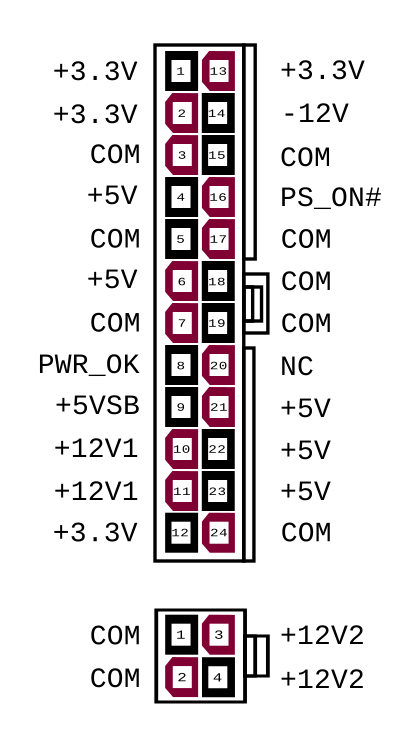
  <img class="image" src="/assets/posts/ATX PS signals.svg" alt="24 Pin ATX Pinout" width="300" height="800" />
  <figcaption class="caption">24 Pin ATX Pinout</figcaption>
</figure>

<figure class="figure  figure--center">
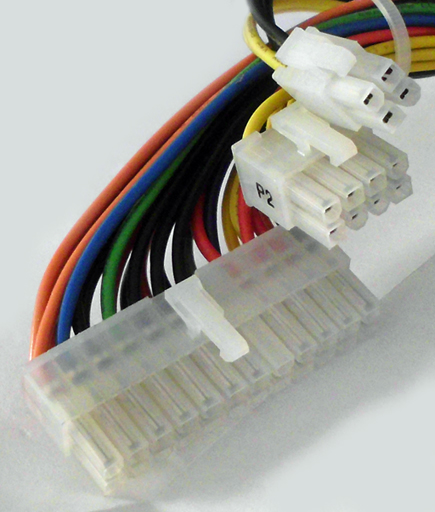
  <img class="image" src="/assets/posts/ATX_Power_connectors_24pin_8pin_4pin_PSU.jpg" alt="Example Molex PS Connectors" width="300" height="800" />
  <figcaption class="caption">Example Molex PS Connectors</figcaption>
</figure>

<p>You can test your power supply by shorting the green control wire to one of the black ground wires. The power supply should then turn on and you should see the following voltages:</p>
<ul>
  <li>Orange: 3.3V</li>
  <li>Red: 5V</li>
  <li>Yellow: 12V</li>
</ul>

<p>There are other voltages available on ATX power supplies but they don’t provide much current (-12V, -5V).</p>

<p>Now here is the trick, the power supply is off until this line is grounded, but the ESP needs power to get the command to turn the power supply on. Luckily there is a +5V VSB (+5V Standby) that is always powered on and has enough current capability to run our board.</p>

<p>The ESP32 has an onboard regulator that can convert the +5V source to it’s 3.3V operating voltage. So you need to make the following connections.</p>

<div class="language-plaintext highlighter-rouge"><div class="highlight"><pre class="highlight"><code>Vin (Pin1) = +5VSB (Pin 9, Violet Wire)
GND (Pin2) = GND (Pin19, (Many options) Black Wire)
Control (Pin18) = PS_ON (Pin 16, Green Wire)
</code></pre></div></div>

<p>Note that the control pin can be changed to many of the GPIO pins on the ESP32. This is the default pin the program is connected to.</p>

<h2 id="setting-up-your-echo-or-other-alexa-enabled-device-to-control-it">Setting up your Echo or other Alexa enabled device to control it</h2>

<p>At this point it should behave like a Phillips Hue light, so go into the alexa app and have it discover new devices. The nice thing about the FauxMo library is it doesn’t require the use of a server and can be discovered on the local network directly by the echo devices. You should now be able to tell it to turn on and off. Have fun!</p>]]></content><author><name>Miswired</name></author><category term="ESP32" /><summary type="html"><![CDATA[Welcome to the first post here! This project uses an ESP32 wifi enabled microcontroller to mimic a Philips Hue device using the FauxmoESP library to turn on an ATX power supply. It basically lets you control the power supply using the Alexa suite of devices.]]></summary><media:thumbnail xmlns:media="http://search.yahoo.com/mrss/" url="https://miswired.github.io/assets/default-social-image.png" /><media:content medium="image" url="https://miswired.github.io/assets/default-social-image.png" xmlns:media="http://search.yahoo.com/mrss/" /></entry></feed>